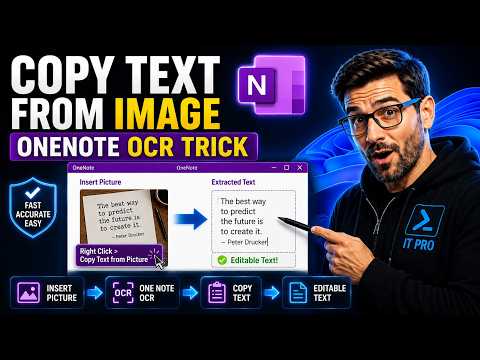
Copy Text from Image Using OneNote OCR
Extract text from JPG images, screenshots and scanned documents using Microsoft OneNote OCR.
Read the GuidePractical guides for Microsoft Word, OneNote, Excel and Microsoft 365, including OCR, document translation, PDF data extraction and Office installation troubleshooting.
Extract text from JPG images, screenshots and scanned documents using Microsoft OneNote OCR.
Read the Guide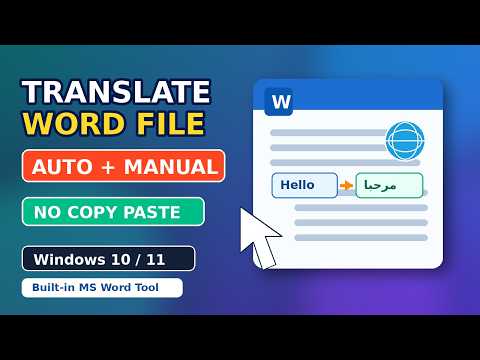
Learn how to translate selected text or an entire Word document automatically or manually.
Read the Guide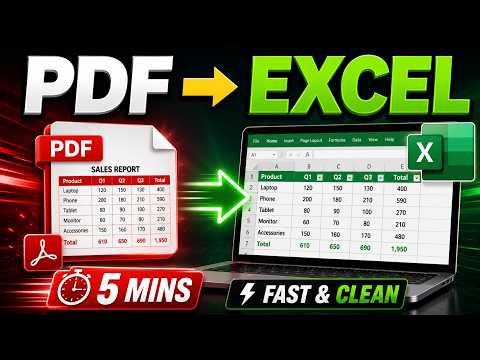
Extract table data from PDF files and move it into an editable Microsoft Excel spreadsheet.
Read the Guide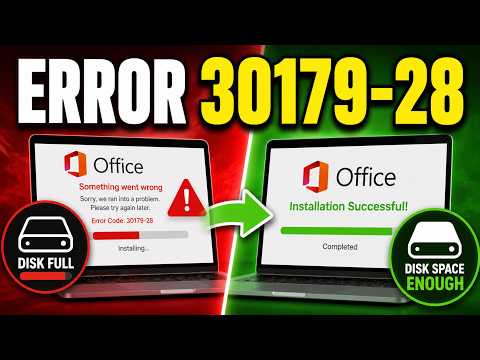
Troubleshoot Microsoft Office and Microsoft 365 installation error 30179-28 when Windows does not have enough available disk space.
Read the GuideMicrosoft Word includes productivity features that can help with document translation, editing and multilingual workflows.
UniTech LK guides explain practical ways to use those features on Windows.
OneNote can recognize text inside supported images using Optical Character Recognition.
This can help when text exists only inside a JPG, PNG, screenshot or scanned document.
PDF documents are designed for page layout, while Excel is designed for structured data.
Extracting tables into Excel can make the information easier to edit, sort, filter and analyze.
Office installation can fail if Windows does not have enough free disk space or if other installation requirements are not met.
Always check available storage before attempting large Microsoft Office or Microsoft 365 installations.