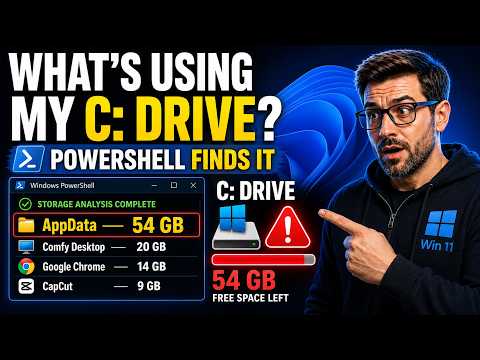
PowerShell Storage Analysis
Find what is using disk space on Windows 11 with PowerShell.
Watch on YouTubeUse built-in PowerShell commands to identify large files and folders, investigate C drive storage usage, analyze WinSxS and understand what may be consuming disk space on Windows 11.
Published: August 12, 2026
If your Windows 11 C drive is unexpectedly full, the first step should be to identify what is actually consuming the storage before deleting anything.
PowerShell gives Windows administrators and advanced users a direct way to inspect disk usage without installing third-party disk-analysis software.
Start by checking the total, used and available storage on the Windows system drive.
Review the Used and Free values to confirm whether the C drive is actually running low on disk space.
Large folders are often responsible for unexpected C drive usage. Common locations include user profiles, application data, Windows component storage and application caches.
This calculates folder sizes and lists the largest folders first. Depending on the amount of data stored on the computer, the scan can take some time.
Individual files can sometimes consume many gigabytes without being obvious in File Explorer.
Always check the complete file path before deleting anything.
Large Windows system files, databases, installer files or application files should not automatically be deleted simply because they are large.
During Windows storage analysis, you may find a file named CapabilityAccessManager.db-wal using an unusually large amount of disk space.
This Windows-related database write-ahead log should not be treated like an ordinary temporary file.
Investigate why the file became large before attempting cleanup.
Do not manually delete Windows database files simply because a PowerShell storage scan reports that they are large.
First identify the Windows component using the file and follow the appropriate troubleshooting procedure.
The WinSxS directory is part of the Windows component store.
File Explorer can make this directory appear larger than the amount of disk space that can actually be reclaimed.
Use DISM to perform the proper Windows component-store analysis.
DISM reports the actual component-store information and indicates whether component-store cleanup is recommended.
If Windows reports that component-store cleanup is recommended, use the supported DISM cleanup command.
This uses Microsoft's servicing mechanism to remove superseded Windows components safely.
Never manually delete files from C:\Windows\WinSxS.
Manual deletion can damage Windows Update, system servicing and Windows recovery.
Storage-analysis commands help identify large files and folders, but a large file is not automatically safe to delete.
Be especially careful with items located inside:
When unsure, determine what created the file before removing it.
PowerShell can list and sort large files and folders so you can identify exactly where storage is being consumed.
Yes. Get-ChildItem can recursively scan the drive while Sort-Object arranges files by size so the largest items appear first.
Common causes include application caches, user profile data, Windows updates, component-store files, temporary data and unexpectedly large database or log files.
No. Do not manually delete WinSxS files. Use DISM's supported component-store analysis and cleanup commands.
Investigate the Windows component creating the file before deleting anything.
UniTech LK has a separate troubleshooting guide dedicated to unusually large CapabilityAccessManager.db-wal files.
Follow the complete demonstration on YouTube to see the PowerShell storage-analysis commands and Windows disk-space results step by step.
Watch on YouTubeContinue troubleshooting Windows storage, security, Microsoft Office, Remote Desktop and mobile problems with these related UniTech LK videos.
Find what is using disk space on Windows 11 with PowerShell.
Watch on YouTube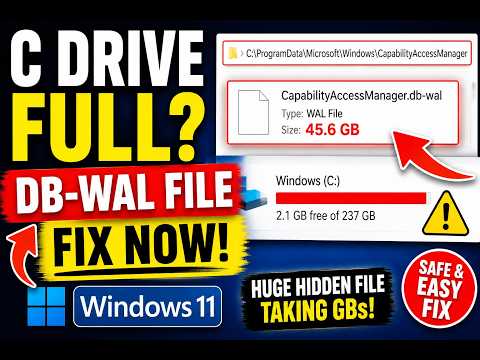
Investigate unusually large CapabilityAccessManager.db-wal storage usage.
Read Guide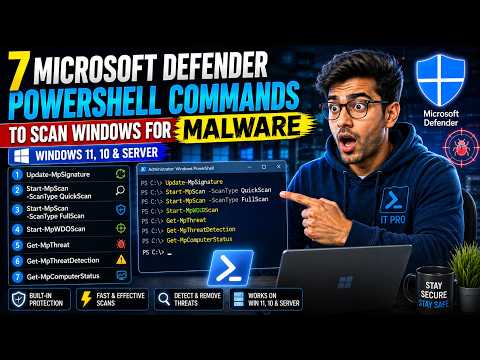
Run Quick Scan, Full Scan, Offline Scan and check Microsoft Defender protection.
Watch on YouTube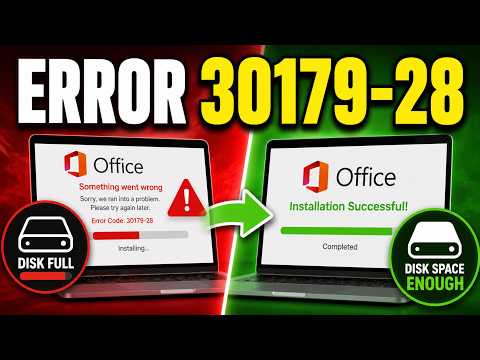
Fix Microsoft Office installation problems caused by insufficient disk space.
Watch on YouTube
Check iOS compatibility and WhatsApp support requirements.
Watch on YouTube
Troubleshoot Remote Desktop settings, services, firewall and network connectivity.
Watch on YouTube